
Create branches from and to ISQs
Before branching, enter all ISQs using the link provided on the Manage Survey page.
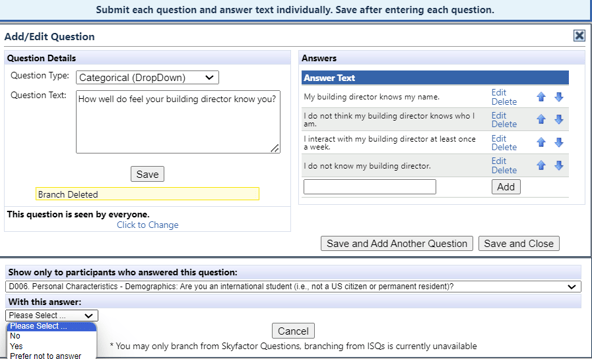
You have the option to branch individual ISQ questions or multiple questions simultaneously. To address a single question, simply click on the edit button beside the ISQ and then select the link that reads Click to Change under the statement “This question is seen by everyone”. From there, the system enables you to designate which question and answer will have visibility to this particular question. You can select multiple answers/groups if needed, however, they must be added one by one.
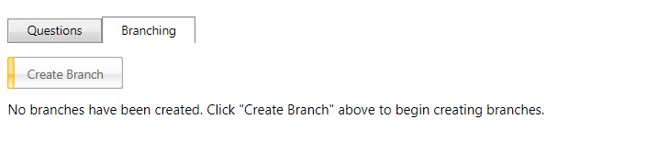
Alternatively, you can utilize the Branching tab if there are multiple questions that require branching to a specific question, answer, or coding. Click the Branching tab located at the top of the ISQ screen. Here, you can click on the Create Branch button to set up branches one by one and select all the questions that need to be branched simultaneously.
Example branching from a categorical question.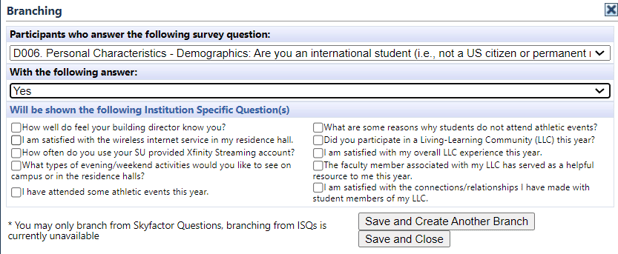
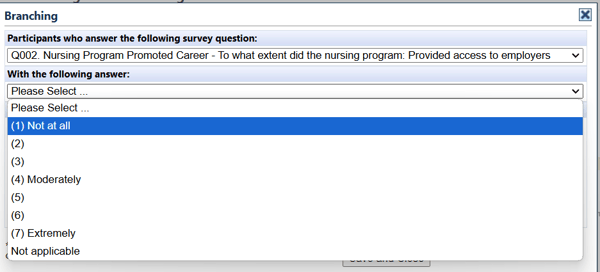
Example branching from a scaled question.
Remember to click Lock ISQs when you are done.